Put the daily wallpaper on your screen
The wallpapers are portrait because they are made for phones. A new one is generated every day and published at this permanent address:
https://lingomat.net/content/wallpaper.png
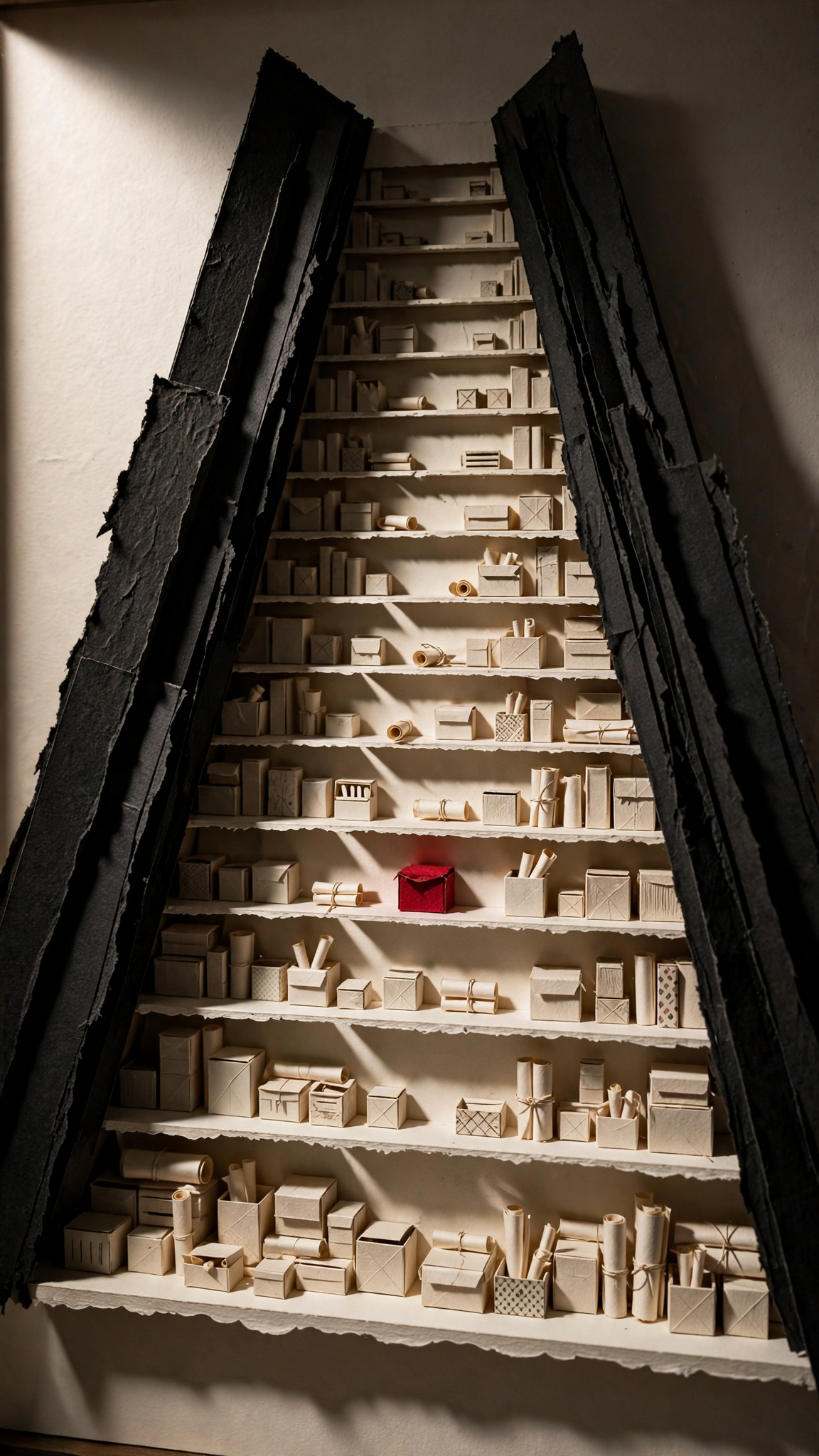
If you automate the download, schedule it for 01:00 UTC. The generation batch starts at 10AM in Canberra; 01:00 UTC leaves at least an hour for it to finish in standard time and two hours during daylight saving. If a run fails, the URL continues to serve the previous successful wallpaper.
Android with MacroDroid
I recommend MacroDroid. Create one macro with a daily trigger and these actions:
- Add a Day/Time trigger for 01:00 UTC (converted to your local time).
- Add an HTTP Request action using
GETand the permanent URL above. - Save the response to a file, ideally
Pictures/daily_wallpaper.png. - Preview or test that action once so the current file exists.
- Add a Set Wallpaper action and select that saved file.
- Run the whole macro once to test it end to end.
Android versions and vendors differ, so allow the storage and wallpaper permissions MacroDroid requests. I tried doing this with Tasker and could never get it to fire reliably. MacroDroid has been much less dramatic.
iPhone
Sorry, I do not have a tested iPhone recipe. Shortcuts may be able to do it, but I would rather admit ignorance than publish instructions I cannot verify.
Windows desktop
The portrait images also work surprisingly well on a desktop when centred
and cropped to fill the display. Save this as set_wallpaper.ps1
and run it daily with Windows Task Scheduler after 01:00 UTC:
# 1. Configuration
$ImageUrl = "https://lingomat.net/content/wallpaper.png"
$LocalPath = "$env:USERPROFILE\Pictures\daily_wallpaper.png"
$RegPath = "HKCU:\Control Panel\Desktop"

# 2. Fetch the image from your daily URL
try {
    Invoke-WebRequest -Uri $ImageUrl -OutFile $LocalPath -TimeoutSec 30
} catch {
    # If the network is down or the URL fails, keep the current wallpaper
    exit
}

# 3. Use Windows Fill: preserve aspect ratio, centred and cropped
Set-ItemProperty -Path $RegPath -Name WallpaperStyle -Value "10"
Set-ItemProperty -Path $RegPath -Name TileWallpaper -Value "0"

# 4. Refresh the desktop and apply the new file
$Signature = @'
using System;
using System.Runtime.InteropServices;
public class Wallpaper {
    [DllImport("user32.dll", CharSet = CharSet.Auto)]
    public static extern int SystemParametersInfo(int uAction, int uParam, string lvParam, int fuWinIni);
}
'@
Add-Type -TypeDefinition $Signature
[Wallpaper]::SystemParametersInfo(0x0014, 0, $LocalPath, 0x01 -bor 0x02)
On Linux or macOS the download is the easy part; applying it depends on your desktop environment. A friendly AI will be happy to translate the PowerShell into the right shell script for your machine.